
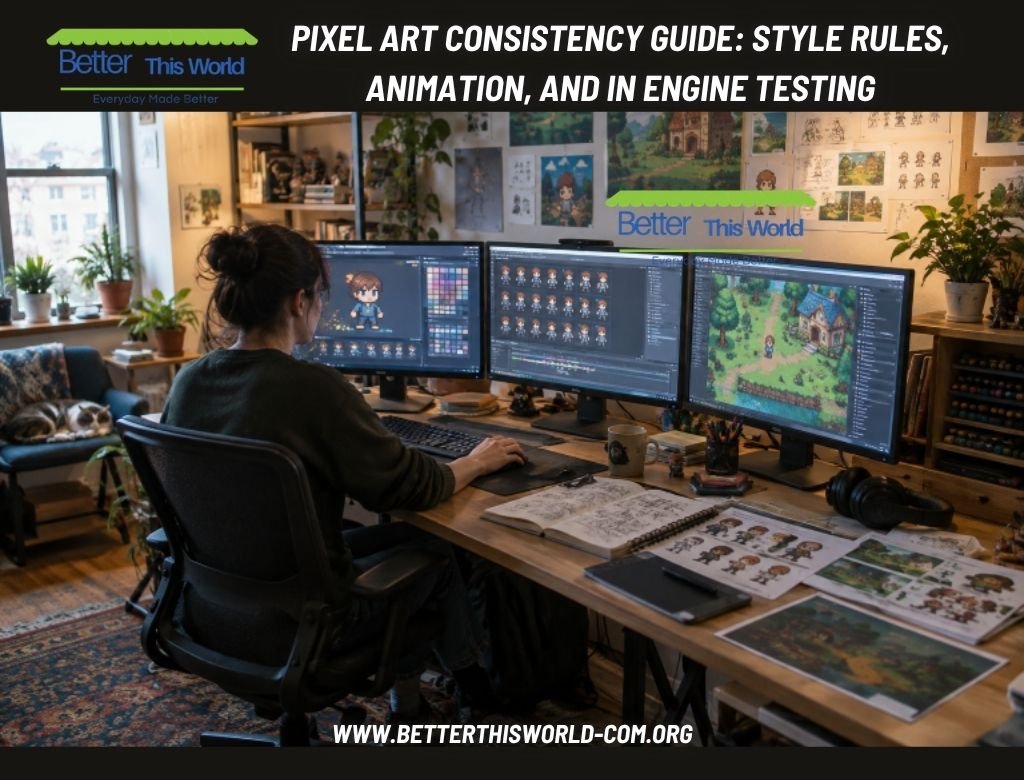
- Set visual rules before building a large asset library.
- Keep sprite scale, grid size, outlines, lighting, and palette choices consistent.
- Plan animation around readable poses rather than frame-by-frame decoration.
- Review assets in the game engine, not only in an image editor.
- Use assisted tools for drafts and variations, then finish with human quality control.
Strong pixel art is less about packing every sprite with detail and more about making the whole game look intentional. A dependable workflow gives characters, items, terrain, and effects a shared visual language. An AI pixel art generator can be useful for exploring early directions or generating variation ideas, but it works best when it follows clear production rules.
Those rules should be simple enough for one artist to remember and specific enough for a team to apply. When a game has consistent proportions, color use, lighting, and animation timing, players can recognize important information quickly during play.
Why Consistency Matters More Than Detail
A simple asset set can look polished when its parts belong together. By contrast, a highly detailed character can feel misplaced beside props with different outlines, texture density, or perspective. For example, a character designed on a 32-by-32 pixel grid may look oversized or overly refined beside furniture built with the visual density of 64-by-64 sprites.
Consistency also supports gameplay readability. A player should be able to distinguish an enemy, a collectible, and a solid platform at a glance, even while the camera moves. Treat visual limits as gameplay tools, not creative restrictions.
Set a Small Visual Style Guide First
Create a one-page style guide before producing multiple assets. It does not need to be elaborate. It simply needs to answer the questions artists would otherwise answer differently from one sprite to the next.
- Choose target sprite sizes, such as 16 by 16, 32 by 32, or 64 by 64 pixels.
- Define the world view: side view, top-down, or isometric.
- Choose dark outlines, colored outlines, or no outlines.
- Set a light direction and a rule for cast shadows.
- Define color limits, highlight treatment, reflections, and texture density.
Choose a Palette That Can Grow
A fixed palette uses a controlled set of approved colors. A looser color theme allows more freedom but requires closer review. For most small projects, begin with base colors, shadows, highlights, and a few accents. Reserve a distinctive accent color for information that matters, such as an interactable object, a rare item, or the player character.
Hue shifting can create separation between light and shadow without relying only on lighter or darker versions of the same color. Test the palette against bright, dark, and busy backgrounds. The principles behind grid-based pixel art favor deliberate placement and clear color grouping over accidental visual noise.
Build a Strong Base Sprite
Your base sprite is the reference model for later poses, equipment, color variants, and enemy versions. Start with the silhouette, then inspect it at the actual size players will see. Add details only when they improve recognition, such as a recognizable hat, tool, hairstyle, or weapon shape.
- Block in the silhouette and overall proportions.
- Check the sprite at normal game scale.
- Add readable details without crowding the form.
- Test it against likely backgrounds.
- Save a clean master version before making variations.
Create Poses That Read Clearly
For small sprites, a changed silhouette often communicates more than interior detail. Plan key states such as idle, walk, attack, hurt, jump, and defeat. In a basic walk cycle, establish contact, passing, and recovery positions first. Then adjust timing and spacing while the animation plays at game speed.
Exaggeration is often helpful. A wider arm swing, clearer bend in the legs, or more obvious recoil can make movement understandable when the sprite occupies only a small portion of the screen. Remove tiny details that flicker between frames or disappear during motion.
Keep Every Asset on the Same Grid
Pixel density must remain consistent across sprites, tiles, and effects. Avoid smooth scaling when you want hard pixel edges, since interpolation can soften the image. In Unity projects, using Point filtering and checking pivots can help maintain stable pixel presentation.
Test camera zoom, movement, rotation, and scrolling before final export. A sprite that looks correct in a drawing program may shimmer, blur, or shift unexpectedly after import.
Use References and Plan Variations in Groups
Keep one approved reference for each major character, enemy type, or environmental family. Record details that must stay stable, including body width, face placement, clothing colors, weapon position, and light direction. This prevents attractive one-off sprites from drifting away from the game’s established style.
Produce related assets in small batches. For a forest-themed game, one base ranger could support three equipment changes, four animation states, and a matching set of potion, seed, and lantern icons. Building the group together makes mismatched scale, lighting, and color choices easier to spot.
Review Assisted Assets Carefully
Whether an asset is drawn manually or created with assistance, inspect it pixel by pixel before approval. Look for stray colors, uneven outlines, broken silhouettes, inconsistent hands, changing facial placement, or equipment that shifts between frames. Compare animation frames side by side, then test them in motion. Manual cleanup remains the final step that makes an asset reliable for production.
Export Files for a Clean Handoff
- Name files by character, action, direction, and frame number.
- Use transparent backgrounds when the game needs them.
- Store editable source files separately from exported game files.
- Record canvas size, grid settings, pivot rules, and intended scale.
- Import and test the final files in the target engine.
Test Assets Inside the Game
Place each asset beside tiles, backgrounds, effects, and interface elements. Review it at the camera distance used most often, then test bright and dark scenes, different screen sizes, and real gameplay speed. This is where you catch issues that static previews hide, including poor contrast, unclear collisions, awkward timing, and visual clutter.
Common Questions About Pixel Art Workflows
What sprite size should a new game use?
Choose based on camera distance, gameplay speed, platform, and required detail. Build a small playable sample before committing to an entire library.
How many colors should a sprite use?
There is no universal number. Use only the colors that support readable forms, lighting, and the project’s chosen style.
Should every sprite have a dark outline?
No. Dark outlines, colored outlines, and outline-free sprites can all work when they match the background treatment and overall mood.
Can automated tools produce final game assets?
They can accelerate concepts and variations, but final files still need checks for grid accuracy, animation logic, consistency, and engine behavior.
A Simple Quality Checklist
- Is the canvas size and pixel density correct?
- Does the asset use approved colors, outlines, shadows, and highlights?
- Is the silhouette clear at game size?
- Do animation frames communicate believable movement?
- Does the file import correctly and remain readable during gameplay?
Conclusion
A consistent pixel art workflow begins with clear limits and repeatable checks. A small style guide, a strong base sprite, controlled palette choices, organized exports, and in-engine testing reduce expensive revisions. When every asset follows the same visual rules, even a modest game can feel cohesive, readable, and complete.